

Setup Instructions
General
Eka’s MCP server is currently supporting Streamable HTTP transport. It uses OAuth 2.0 with OpenID Connect (OIDC) flow for dynamic client registration for authentication at the following address:- HTTP :
https://mcp.eka.care/mcp
VS Code (macOS)
VS Code (macOS)
Requirements: VS Code 1.95+ with GitHub Copilot
- Press
Cmd + Shift + P - Type and select MCP: Add Server
- Choose HTTP (HTTP or Server-Sent Events)
- Enter URL:
https://mcp.eka.care/mcp - Enter server name:
eka-care-mcp - Authenticate with your Eka.care email
VS Code (Windows)
VS Code (Windows)
Requirements: VS Code 1.95+ with GitHub Copilot
- Press
Ctrl + Shift + P - Type and select MCP: Add Server
- Choose HTTP (HTTP or Server-Sent Events)
- Enter URL:
https://mcp.eka.care/mcp - Enter server name:
eka-care-mcp - Authenticate with your Eka.care email
%APPDATA%\Code\User\globalStorage\github.copilot-chat\mcp.jsonClaude Desktop Paid(macOS/Windows)
Claude Desktop Paid(macOS/Windows)
Requirements: Claude Paid subscription
- Open Claude Desktop
- Click Settings → Connectors → Add custom connector
- Type the name as Eka-Care-mcp
- Type the URL as https://mcp.eka.care/mcp
- Tap Add
- Authenticate with Eka.care
- Save and restart
~/Library/Application Support/Claude/claude_desktop_config.json
Config(Windows): %APPDATA%\Claude\claude_desktop_config.jsonClaude Desktop Free(macOS)
Claude Desktop Free(macOS)
Requirements: Claude Desktop app (Free tier)
- Open Claude Desktop
- Click Settings (bottom-left gear icon)
- Navigate to Developer → Edit Config
- Add this configuration:
- Save and restart Claude Desktop
- Authenticate when prompted
~/Library/Application Support/Claude/claude_desktop_config.jsonClaude Desktop Free(Windows)
Claude Desktop Free(Windows)
Requirements: Claude Desktop app (Free tier)
- Open Claude Desktop
- Click Settings (gear icon)
- Go to Developer → Edit Config
- Add:
- Save and restart Claude
- Authenticate when prompted
%APPDATA%\Claude\claude_desktop_config.jsonChatGPT (Go/Paid)
ChatGPT (Go/Paid)
Requirements: Free chatgpt does not provide the remote mcp connectors currently, You should have >Go model.
- Open https://chatgpt.com/
- Go to profile (Left bottom)
- Click Settings
- Navigate to Apps and Connectors
- Scroll down and inside the Developer mode, switch it on
- Inside Apps and Connectors, tap Create app
- Enter the name eka-care-mcp
- Enter the URL https://mcp.eka.care/mcp and tap Create
- Authenticate when prompted
Cursor (macOS)
Cursor (macOS)
Requirements: Cursor IDE
- Open Cursor
- Press
Cmd + Shift + P - Type Cursor settings
- Select Tools & MCP
- Tap on New MCP Server
- Add server configuration:
- Tap on Connect to Authenticate with Eka.care
- Restart Cursor
~/Library/Application Support/Cursor/User/globalStorage/mcp.jsonCursor (Windows)
Cursor (Windows)
Requirements: Cursor IDE
- Open Cursor
- Press
Ctrl + Shift + P - Type Cursor settings
- Select Tools & MCP
- Tap on New MCP Server
- Add server configuration:
- Restart Cursor
- Complete authentication
%APPDATA%\Cursor\User\globalStorage\mcp.jsonZed (macOS)
Zed (macOS)
Requirements: Zed Editor with AI features enabled
- Open Zed
- Go to Zed → Settings → Language Models
- Scroll to MCP Servers
- Click Add Server
-
Enter:
- Name:
eka-care - URL:
https://mcp.eka.care/mcp - Transport:
HTTP
- Name:
- Save and restart Zed
- Authenticate when prompted
~/.config/zed/settings.jsonZed (Windows)
Zed (Windows)
Requirements: Zed Editor with AI features
- Open Zed
- Settings → Language Models
- MCP Servers → Add Server
-
Configure:
- Name:
eka-care - URL:
https://mcp.eka.care/mcp - Transport:
HTTP
- Name:
- Save and restart
- Complete authentication
%APPDATA%\Zed\settings.jsonWindsurf (macOS)
Windsurf (macOS)
Requirements: Windsurf IDE
- Open Windsurf
- Press
Cmd + ,for Settings - Navigate to Extensions → MCP
- Add server:
- Restart Windsurf
- Authenticate with Eka.care
Windsurf (Windows)
Windsurf (Windows)
Requirements: Windsurf IDE
- Open Windsurf
- Press
Ctrl + ,for Settings - Extensions → MCP
- Add configuration:
- Restart Windsurf
- Complete authentication
Who Should Use This?
Healthcare Providers
Doctors, clinics, and hospitals using Eka.care for patient management
Health Tech Companies
Platforms building healthcare workflows and automation
Medical Administrators
Staff managing appointments, records, and prescriptions
Developers
Engineers building AI-powered healthcare applications
What Can You Do?
👥 Patient Management
👥 Patient Management
- Search and retrieve patient records
- Add new patients
- Update patient information
- View complete medical history
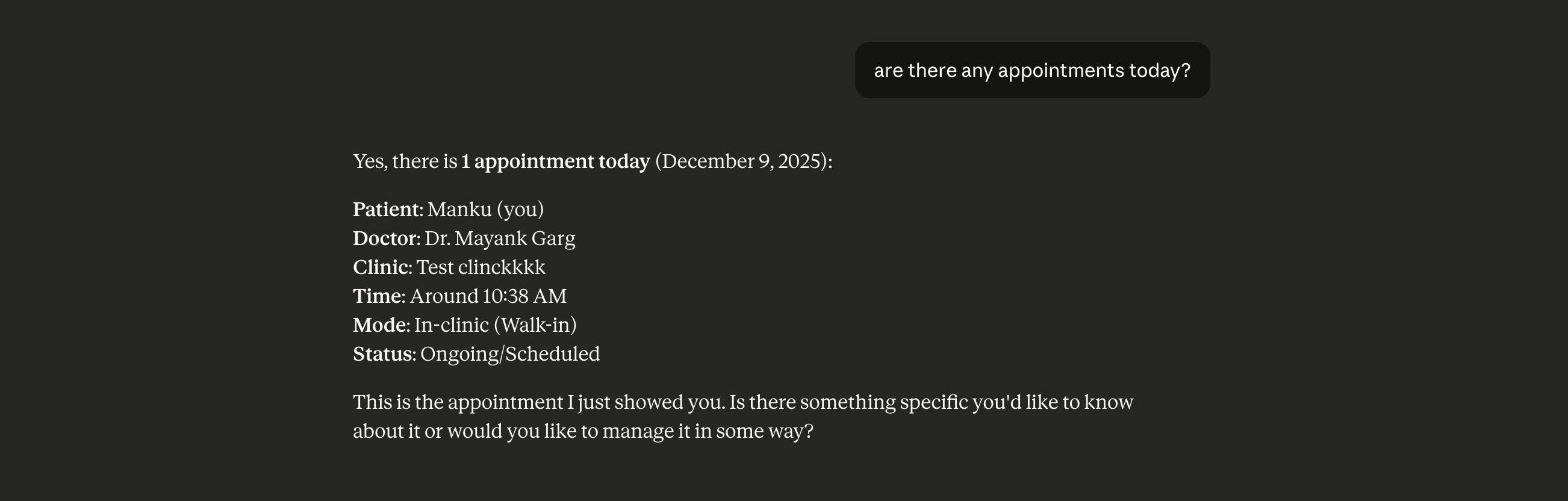
📅 Appointment Management
📅 Appointment Management
- Check available slots
- Book appointments
- Reschedule or cancel
- View appointment history
💊 Prescriptions
💊 Prescriptions
- Generate digital prescriptions
- View prescription history
- Access medication details
🏥 Doctor & Clinic Operations
🏥 Doctor & Clinic Operations
- Retrieve doctor profiles
- Access clinic information
- View available services
Need Help? Email us at ekaconnect@eka.care